RTL8812AU+RTL8811AU 2.4Ghz/5Ghz WiFi
The below RTL8811 USB WiFi adapter provides both 2.4Ghz and 5GHz support, this device is available from multiple vendors and can even be assembled onto a mPCIe to USB adapter. The RTL8811 chipset uses the same driver support for the RTL8812 device which there is an easy to use driver installation method.
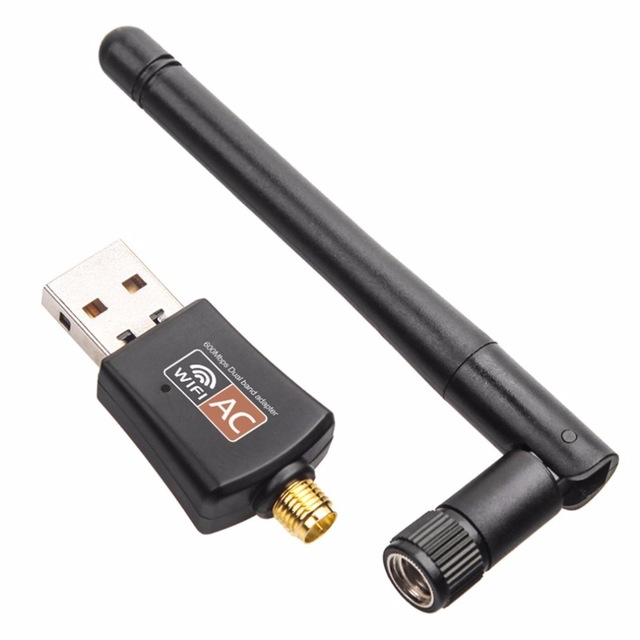
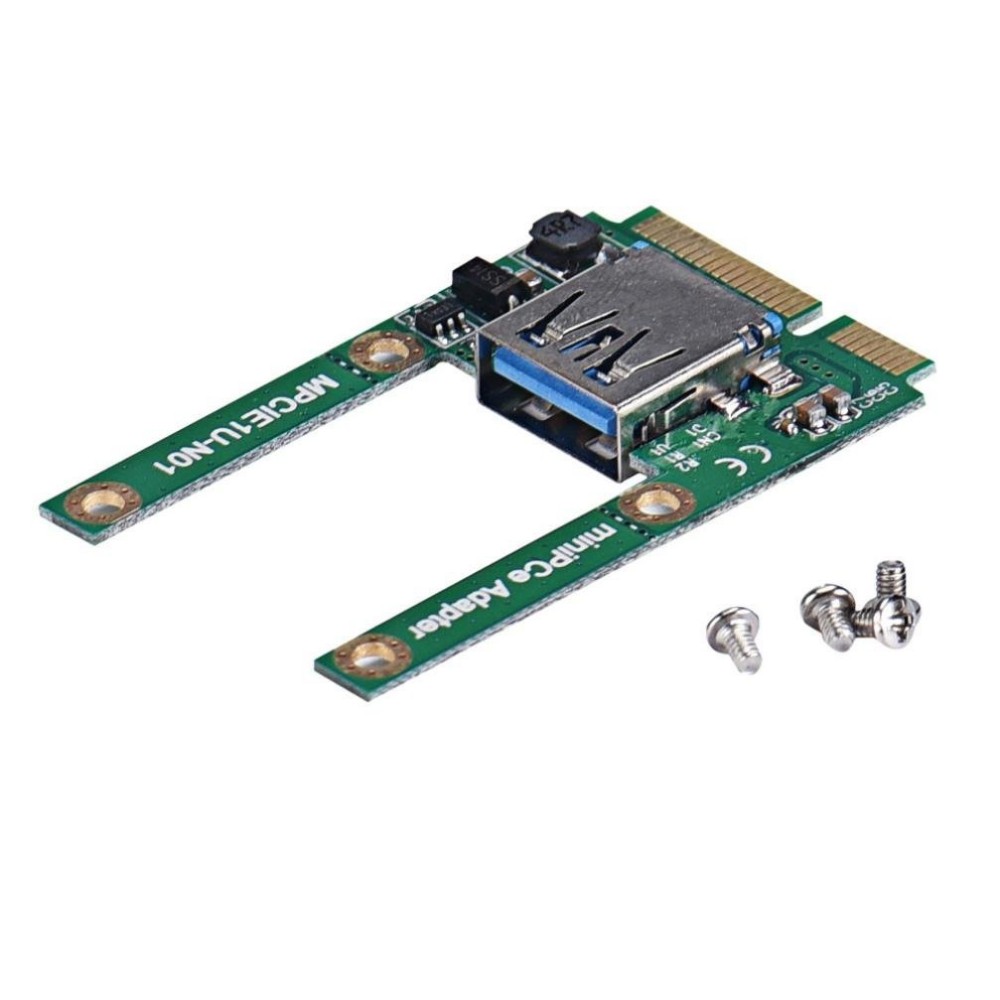
Here's the procedure we used to configure the WiFi card, this process was fairly straight-forward thanks to a open source git-hub page maintaining support for the chipset.
root@raspberrypi:~# apt-get update
root@raspberrypi:~# apt-get install raspberrypi-kernel-headers build-essential libncurses5-dev bc python git
root@raspberrypi:~# wget https://raw.githubusercontent.com/notro/rpi-source/master/rpi-source
root@raspberrypi:~# chmod +x rpi-source
root@raspberrypi:~# ./rpi-source
That last step may argue a few times you haven't installed something, if so run the prompted command to install the missing component and re-run rpi-source. When that's finished complete do :
root@raspberrypi:~# git clone https://github.com/gnab/rtl8812au.git
root@raspberrypi:~# cd rtl8812au/
We need to change the target platform from x86 to RPi so edit the make file and make 2 changes on lines 53 and 59 :
root@raspberrypi:~/rtl8812au# vim Makefile
CONFIG_PLATFORM_I386_PC = n
CONFIG_PLATFORM_ARM_RPI = y
Then we can kick off the installer that will compile and install the kernel module for the WiFi card :
root@raspberrypi:~/rtl8812au# chmod +x install.sh
root@raspberrypi:~/rtl8812au# ./install.sh
After this is done you can activate module live and check it's loaded AOK :
root@raspberrypi:~/rtl8812au# dmesg | tail -10
[    9.285294] .
[    9.288177] sd 0:0:0:0: [sda] Attached SCSI removable disk
[ 1807.734429] 8812au: loading out-of-tree module taints kernel.
[ 1807.909864] usbcore: registered new interface driver rtl8812au
[ 1808.764543] IPv6: ADDRCONF(NETDEV_UP): wlan0: link is not ready
[ 1808.767782] RTL871X: indicate disassoc
[ 1808.769839] IPv6: ADDRCONF(NETDEV_UP): wlan0: link is not ready
[ 1808.770117] RTL871X: set bssid:00:00:00:00:00:00
[ 1808.770931] RTL871X: set ssid [gxffffffc6isQxffffffffJxffffffec)ͺxffffffabxfffffff2xfffffffbxffffffe3F|xffffffc2Txfffffff8xffffffe8xffffffe7xffffff8dvZ.c3xffffff9fɚxffffff8b] fw_state=0x00000008
[ 1814.973488] RTL871X: nolinked power save enter
Next let's find the local 5Ghz network :
root@raspberrypi:~# iwlist wlan0 scanning
wlan0     Scan completed :

          Cell 05 - Address: 60:38:E0:D8:C5:DA
                    ESSID:"dd-wrt"
                    Protocol:IEEE 802.11bgn
                    Mode:Master
                    Frequency:2.437 GHz (Channel 6)
                    Encryption key:on
                    Bit Rates:144 Mb/s
                    Extra:rsn_ie=30140100000fac040100000fac040100000fac020c00
                    IE: IEEE 802.11i/WPA2 Version 1
                        Group Cipher : CCMP
                        Pairwise Ciphers (1) : CCMP
                        Authentication Suites (1) : PSK
                    Quality=0/100  Signal level=93/100
          Cell 06 - Address: 1C:BD:B9:BE:6B:EC
                    ESSID:"dd-wrt"
                    Protocol:IEEE 802.11bgn
                    Mode:Master
                    Frequency:2.437 GHz (Channel 6)
                    Encryption key:on
                    Bit Rates:72 Mb/s
                    Extra:rsn_ie=30140100000fac040100000fac040100000fac020000
                    IE: IEEE 802.11i/WPA2 Version 1
                        Group Cipher : CCMP
                        Pairwise Ciphers (1) : CCMP
                        Authentication Suites (1) : PSK
                    Quality=0/100  Signal level=57/100

          Cell 12 - Address: 60:38:E0:D8:C5:D9
                    ESSID:"dd-wrtAC"
                    Protocol:IEEE 802.11AC
                    Mode:Master
                    Frequency:5.24 GHz (Channel 48)
                    Encryption key:on
                    Bit Rates:780 Mb/s
                    Extra:rsn_ie=30140100000fac040100000fac040100000fac020c00
                    IE: IEEE 802.11i/WPA2 Version 1
                        Group Cipher : CCMP
                        Pairwise Ciphers (1) : CCMP
                        Authentication Suites (1) : PSK
                    Quality=0/100  Signal level=75/100
Enter the target network ESSID (and password when prompted) to generate the wpa authentication details for connecting :
root@raspberrypi:~# wpa_passphrase dd-wrtAC
network={
        ssid="dd-wrtAC"
        #psk="xxxxxxxx"
        psk=4265dxxxxxxxxxxxxxxxxxxxxxxxxxxxxxxxxxxxxxxxxxxxxxxxxxxxxxx
}
Then add these generated details to the file below
root@raspberrypi:~# cat /etc/wpa_supplicant/wpa_supplicant.conf

ctrl_interface=DIR=/var/run/wpa_supplicant GROUP=netdev
update_config=1
network={
        ssid="dd-wrtAC"
        #psk="xxxxxxxx"
        psk=4265dxxxxxxxxxxxxxxxxxxxxxxxxxxxxxxxxxxxxxxxxxxxxxxxxxxxxxx
}
Next we'll restart the wlan interface :
root@raspberrypi:~# ifdown wlan0
root@raspberrypi:~# ifup wlan0
You may get an error message when doing that :
ioctl[SIOCSIWAP]: Operation not permitted
ioctl[SIOCSIWENCODEEXT]: Invalid argument
ioctl[SIOCSIWENCODEEXT]: Invalid argument
This just appears to be a debug message or some sort and can be ignored. We should now be attached to the local 5Ghz network :
root@raspberrypi:~# iwconfig

lo        no wireless extensions.

wlan0     IEEE 802.11AC  ESSID:"dd-wrtAC"  Nickname:""
          Mode:Managed  Frequency:5.24 GHz  Access Point: 60:38:E0:D8:C5:D9
          Bit Rate:174 Mb/s   Sensitivity:0/0
          Retry:off   RTS thr:off   Fragment thr:off
          Encryption key:****-****-****-****-****-****-****-****   Security mode:open
          Power Management:off
          Link Quality=100/100  Signal level=80/100  Noise level=0/100
          Rx invalid nwid:0  Rx invalid crypt:0  Rx invalid frag:0
          Tx excessive retries:0  Invalid misc:0   Missed beacon:0

eth0      no wireless extensions.

root@raspberrypi:~/rtl8812au# ifconfig wlan0
wlan0     Link encap:Ethernet  HWaddr cc:95:d7:4c:d1:de
          inet addr:192.168.1.148  Bcast:192.168.1.255  Mask:255.255.255.0
          inet6 addr: fe80::6a9a:209:fc1b:f023/64 Scope:Link
          UP BROADCAST RUNNING MULTICAST  MTU:1500  Metric:1
          RX packets:119 errors:0 dropped:4 overruns:0 frame:0
          TX packets:41 errors:0 dropped:0 overruns:0 carrier:0
          collisions:0 txqueuelen:1000
          RX bytes:16567 (16.1 KiB)  TX bytes:8927 (8.7 KiB)
After disconnecting the Ethernet we can test the wlan card is able to ping out to a website AOK:
root@raspberrypi:~# route
Kernel IP routing table
Destination     Gateway         Genmask         Flags Metric Ref    Use Iface
default         DD-WRT          0.0.0.0         UG    303    0        0 wlan0
192.168.1.0     *               255.255.255.0   U     303    0        0 wlan0

root@raspberrypi:~# ping www.google.com
PING www.google.com (216.58.211.164) 56(84) bytes of data.
64 bytes from dub08s01-in-f164.1e100.net (216.58.211.164): icmp_seq=1 ttl=56 time=36.9 ms
64 bytes from dub08s01-in-f164.1e100.net (216.58.211.164): icmp_seq=2 ttl=56 time=37.0 ms
64 bytes from dub08s01-in-f164.1e100.net (216.58.211.164): icmp_seq=3 ttl=56 time=36.5 ms
64 bytes from dub08s01-in-f164.1e100.net (216.58.211.164): icmp_seq=4 ttl=56 time=35.8 ms
64 bytes from dub08s01-in-f164.1e100.net (216.58.211.164): icmp_seq=5 ttl=56 time=35.6 ms
64 bytes from dub08s01-in-f164.1e100.net (216.58.211.164): icmp_seq=6 ttl=56 time=35.8 ms
^C
--- www.google.com ping statistics ---
6 packets transmitted, 6 received, 0% packet loss, time 5007ms
rtt min/avg/max/mdev = 35.624/36.314/37.016/0.570 ms
We suspect that once the module (8812au.ko) has been built just this file can be copied over to the second unit (assuming that is running the same kernel version) ala the line in install.sh :
cp 8812au.ko /lib/modules/$(uname -r)/kernel/drivers/net/wireless
We haven't gone as far as to test out DKMS as per the github page ( https://github.com/gnab/rtl8812au/ ) but expect that would also work.